Google Ads Enhanced Conversions is a feature designed to improve the accuracy of conversion tracking in a world where cookies and traditional tracking are increasingly limited. Normally, Google Ads relies on cookies to understand which ad clicks lead to conversions. However, because of browser restrictions, iOS privacy rules, ad blockers, and consent requirements, many conversions are no longer attributed correctly. Enhanced Conversions solve this by allowing advertisers to securely send first-party customer data, such as an email address or phone number, at the time of conversion. Google then hashes this data and matches it with signed-in Google users, which helps recover conversions that would otherwise be lost.
The main benefit of Enhanced Conversions is better measurement and attribution. When they are set up correctly, advertisers typically see an increase in recorded conversions, often between 5% and 15%, especially on iOS and Safari traffic. This leads to more accurate reporting, improved return on ad spend (ROAS), and better performance from automated bidding strategies like Target CPA or Target ROAS. Because the data comes directly from your own website and is hashed before being used, the process is privacy-safe and compliant with Google’s data policies.
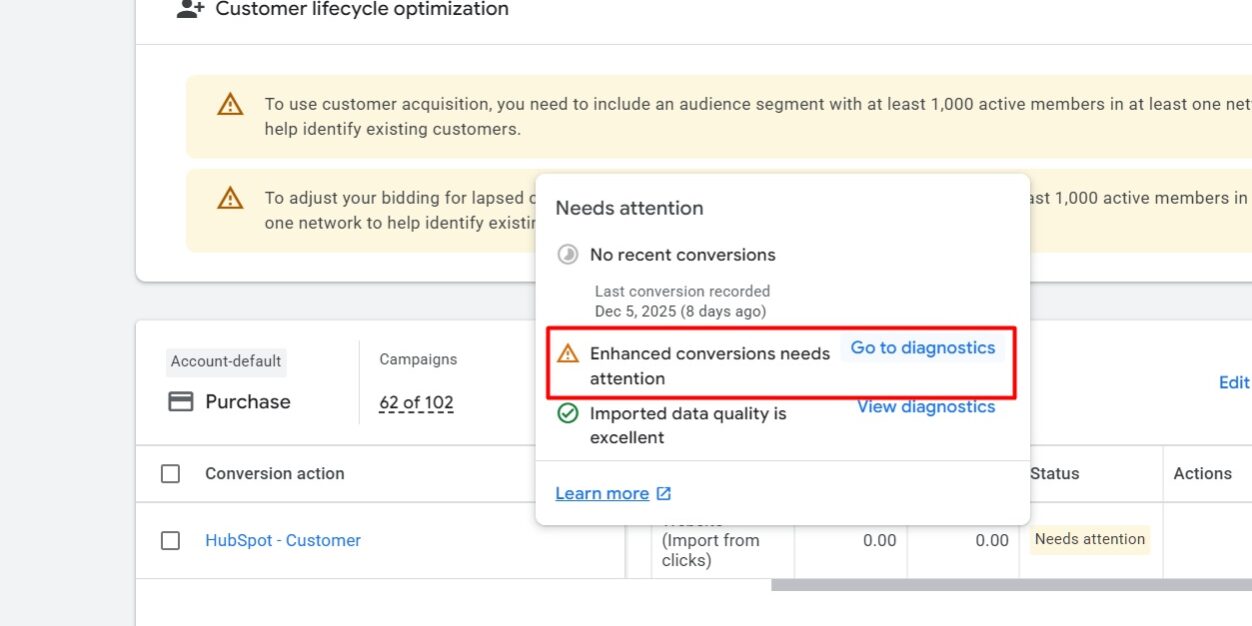
Enhanced Conversions work by using customer information that users naturally provide during a conversion, such as an email address during checkout or a phone number in a lead form. Even a single identifier, like an email address, is enough for Google to perform matching. The data must be clean and properly formatted—lowercase, trimmed, and sent at the correct moment—otherwise Google cannot match it successfully. When the data is missing, incorrectly formatted, or sent too late, Google Ads will show warnings like “Tag detected but no user-provided data” or “Not recording enhanced conversions.”
Many Enhanced Conversion issues happen because the user data is not sent correctly or is blocked by consent settings. If consent mode is enabled and ad_user_data is denied, Google Ads will detect the conversion tag but will not receive any enhanced data. In these cases, Enhanced Conversions appear enabled in Google Ads, but no actual matching occurs. Another common problem is firing the conversion tag before the user data is available, which prevents Google from associating the conversion with the customer information.
Platform limitations can also cause problems. On Shopify, for example, older methods like checkout scripts or thank-you page JavaScript no longer work with the modern checkout system. Enhanced Conversions on Shopify must be implemented using the Google & YouTube app or through Customer Events (custom pixels). On WordPress or custom sites, issues such as JavaScript errors, REST API problems, or PHP output errors can prevent the data from being sent properly, even if the tag appears to fire.
To verify whether Enhanced Conversions are working, advertisers should use Google Tag Assistant to confirm that the Google Ads conversion tag is firing and that user data (such as hashed email values) is being detected. In Google Ads, the conversion action’s Enhanced Conversions status should show “Recording.” Match quality and performance improvements usually appear after 24 to 72 hours, once Google has processed enough data.
In summary, Google Ads Enhanced Conversions are an essential upgrade to traditional conversion tracking. They help recover lost conversions, improve attribution accuracy, and support smarter bidding in a privacy-focused environment. When issues occur, they are almost always related to missing user data, incorrect formatting, consent restrictions, or platform-specific limitations. Once those problems are resolved, Enhanced Conversions typically work reliably and provide measurable improvements in campaign performance.
If you want, you can tell me what platform you’re using (Shopify, WordPress, or custom), how you’ve implemented Google Ads tags, and what error Google Ads is showing. I can then explain the fix specifically for your setup.
When using Shopify for purchase tracking through Google Tag Manager, Enhanced Conversions often fail because Shopify’s checkout environment is heavily restricted. Google Ads Enhanced Conversions require customer information such as an email address or phone number to be available at the moment the conversion fires. However, Shopify’s modern checkout (Checkout Extensibility) does not reliably expose customer data to traditional GTM containers placed in themes, thank-you pages, or legacy checkout scripts. As a result, Google Ads detects the conversion tag but does not receive any user-provided data, which leads to messages like “Tag detected but no user-provided data” or “Not recording enhanced conversions.”
Enhanced Conversions are useful in Shopify because a large percentage of traffic comes from iOS devices and browsers that block third-party cookies. Without Enhanced Conversions, many purchases are under-reported, Smart Bidding does not receive enough accurate signals, and ROAS appears lower than it actually is. When implemented correctly, Enhanced Conversions allow Shopify to pass first-party customer data—most commonly the buyer’s email address—to Google Ads in a privacy-safe, hashed form. This enables Google to match conversions to signed-in users and significantly improves attribution accuracy.
The main reason Enhanced Conversions break when using GTM on Shopify is that the purchase event fires before customer data is accessible, or the data is never accessible at all. Even if the Google Ads conversion tag fires successfully, Google cannot enhance the conversion unless the email or phone number is passed into the tag at the same time. This problem is especially common when GTM is installed only in the theme and not through Shopify’s Customer Events system. In those cases, GTM runs in the storefront context, but the checkout and order confirmation pages operate in a separate, sandboxed environment.
Consent settings also play a critical role. If Shopify Customer Privacy or a third-party consent banner is in place and the ad_user_data consent is not granted, Google Ads will deliberately ignore any enhanced conversion data. From the advertiser’s perspective, this looks like a tracking error, but it is actually Google respecting the consent signal. This is why Enhanced Conversions may appear enabled in Google Ads but still show as inactive or incomplete.
To fix Enhanced Conversions for Shopify purchases when using GTM, the key is ensuring that GTM runs inside Shopify’s Customer Events (Custom Pixel) environment rather than relying on legacy checkout scripts. Within this environment, customer data such as the purchaser’s email becomes available at the correct time. That data must be pushed into the dataLayer before or alongside the purchase event so that the Google Ads conversion tag can read it. When this is done correctly, Google Ads automatically hashes the data and associates it with the conversion without exposing any personally identifiable information.
Another important factor is data quality. Enhanced Conversions only work well when the email address or phone number is cleanly formatted. Emails must be lowercase, trimmed, and free of extra spaces, and phone numbers should be in international format. Poor formatting does not usually cause outright errors, but it leads to low match quality, which reduces the effectiveness of Enhanced Conversions even though they appear to be working.
Once everything is configured properly, verification is straightforward. In Google Tag Assistant, the Google Ads conversion tag should fire and show user data parameters such as hashed email values. In Google Ads, the conversion action’s Enhanced Conversions status should move to “Recording.” Match quality metrics and performance improvements typically appear after a day or two, once Google has processed enough conversions.
In summary, Enhanced Conversions for Shopify purchases via GTM fail not because GTM or Google Ads is broken, but because Shopify restricts access to checkout data unless Customer Events are used. By running GTM within Shopify’s custom pixel environment, ensuring consent is granted, and passing clean customer data at the moment of purchase, Enhanced Conversions work reliably and significantly improve conversion tracking accuracy.
If you want, I can now write the exact Custom Pixel + GTM dataLayer logic for Shopify purchases, or help you decide whether switching to the Google & YouTube app would be a simpler and more reliable solution for your store.
Shopify → GTM → Google Ads Enhanced Conversions (Purchase)
How this works in Shopify
Because Shopify checkout is sandboxed, GTM must run inside Shopify Customer Events (Custom Pixel). This allows access to the buyer’s email at the moment the purchase is completed. That email is then pushed into the dataLayer, where your Google Ads conversion tag (firing via GTM) can read it and send it to Google Ads as an Enhanced Conversion.
Create a Custom Pixel in Shopify (REQUIRED)
Go to:
Shopify Admin → Settings → Customer events → Add custom pixel
Name it something like:
GTM – Enhanced Conversions
Paste this code exactly (safe, minimal, and compliant):
analytics.subscribe("checkout_completed", (event) => {

  var email = event.data.checkout.email;
  if (email) {

    window.dataLayer = window.dataLayer || [];

    window.dataLayer.push({

      event: "enhanced_conversion_purchase",

      user_data: {

        email: email.toLowerCase().trim()

      }

    });

  }

});
📌 This runs only after a successful purchase
📌 Email alone is enough for Enhanced Conversions
📌 No manual hashing required (Google does it)
Configure the Google Ads Conversion Tag
In Google Tag Manager:
-
Use a Google Ads Conversion Tracking tag
-
Turn Enhanced Conversions ON
-
Choose “User-provided data from variables”
-
Map:
-
Email → Data Layer Variable
user_data.email
-
The conversion trigger should be: that’s all, and you are good to go