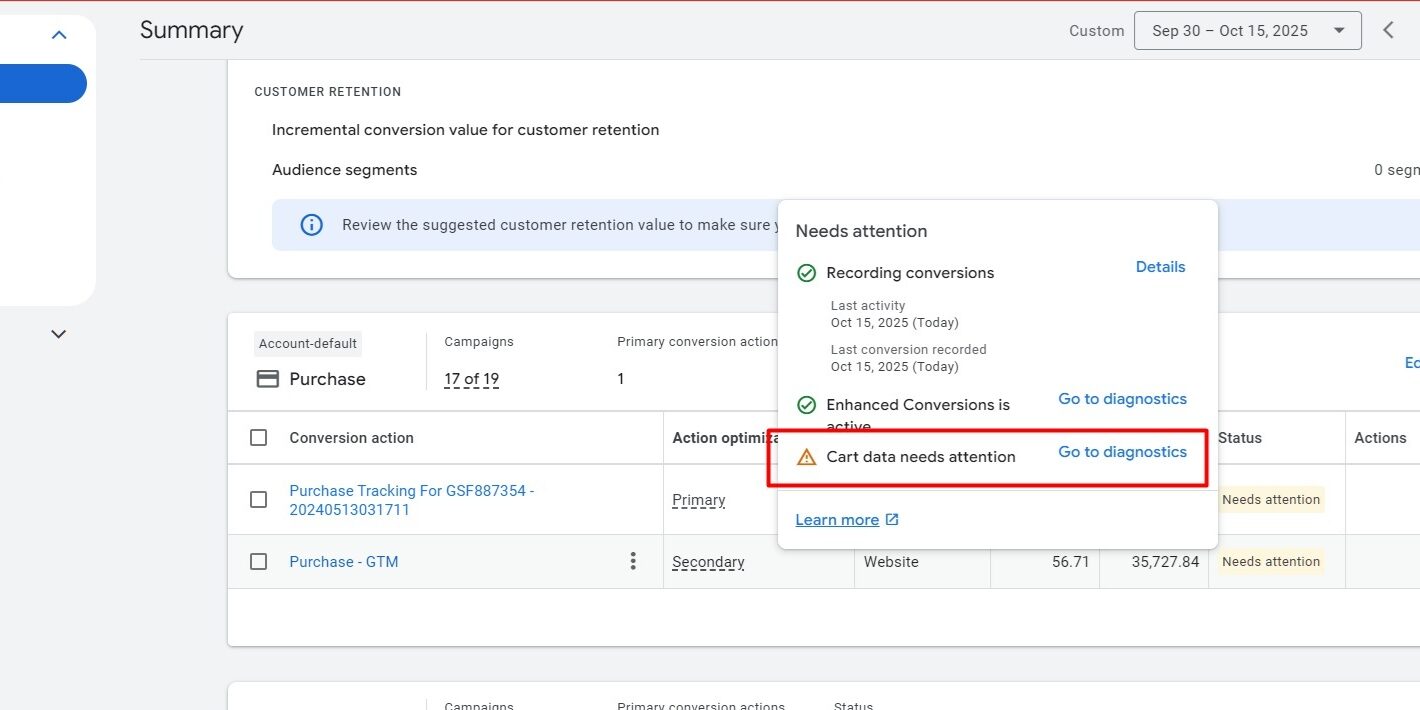
When running ecommerce campaigns in Google Ads, accurate purchase tracking is essential. One common problem many advertisers see in their Google Ads Conversions Diagnostics dashboard is a yellow warning labeled:
Cart data needs attention
This status indicates there’s an issue with the product-level cart data being sent with your purchase conversion events. Thankfully, it’s usually fixable with the right implementation. Google Help
🛠 What “Cart Data Needs Attention” Means
Google Ads Conversions with cart data lets you send detailed purchase information (like items sold, prices, and quantities) along with your conversion events. This improves:
-
Sales reporting accuracy
-
Optimization of campaigns
-
Automated bidding and insights
The diagnostics tool checks three core things:
✔ That cart data is being sent with every purchase.
✔ That the cart data includes valid product details (item ID, price, quantity).
✔ That your cart item IDs match the product IDs in your Google Merchant Center. Google Help
If one of these is missing or malformed, Google Ads flags it as “Needs attention.” Google Help
❗ Common Causes of “Cart Data Needs Attention”
Here are the usual reasons you see this warning:
1️⃣ Missing Product Data
Your purchase event isn’t including the required item details — especially the
items[]
array with product identifiers, prices, and quantities. Optizent
2️⃣ Incorrect Data Format
The cart data may be present but not structured in the correct format that Google expects (for example, not formatted as an array). Optizent
3️⃣ Mismatched Item IDs
The item IDs sent with conversions don’t match the product IDs in your Merchant Center feed, so Google can’t reconcile sold products. Google Help
4️⃣ Empty Cart Data
Your page is firing a purchase conversion, but the cart data array is completely empty (no product entries at all). Google Help

📈 How to Fix the Issue (Step-by-Step)
✅ Step 1 — Verify Your Cart Data Structure
The most crucial part of your purchase tag is the items array. In Google Ads this should look like:
Each item in the array must include:
✔
id
— SKU or unique product identifier
✔
price
— unit price
✔
quantity
— number of units sold Optizent
If any of these fields are missing or invalid, Google will flag the conversion. Optizent
✅ Step 2 — Match Item IDs With Your Merchant Center
If your products are listed in Google Merchant Center, make sure the
id
values in your cart data exactly match the product IDs there. Mismatches (e.g., SKU vs. numeric ID differences) will trigger the warning. Google Help
✅ Step 3 — Properly Send Cart Data With Purchase Events
For Shopify stores, ensure your cart tracking includes every product sold in the purchase event. If you use GA4 + Google Tag Manager:
-
Pull the ecommerce data from the dataLayer.
-
Populate a custom variable for the Google Ads purchase tag.
-
Make sure the
items[]array is passed directly into the Google Ads conversion tag. Optizent
You may need a custom JavaScript variable in GTM that formats the ecommerce purchase data into the structure Google expects. Optizent
✅ Step 4 — Test & Validate
After implementing the fix:
-
Complete a test purchase (with actual product data).
-
Use Google Tag Assistant or GTM Preview to confirm the conversion tag fires.
-
Check that the purchase event payload includes the full
itemsarray with valid data.
Within 24–48 hours, the diagnostic warning should update to “Good” or “Excellent” once valid cart data is processed. Google Help